Run Page
Learning Outcomes
- How to access the run page for a project
- Understanding the key components in the run page header
- Recognizing run status messages and their meanings
Basics
Accessing the run page
To access the run page either:
-
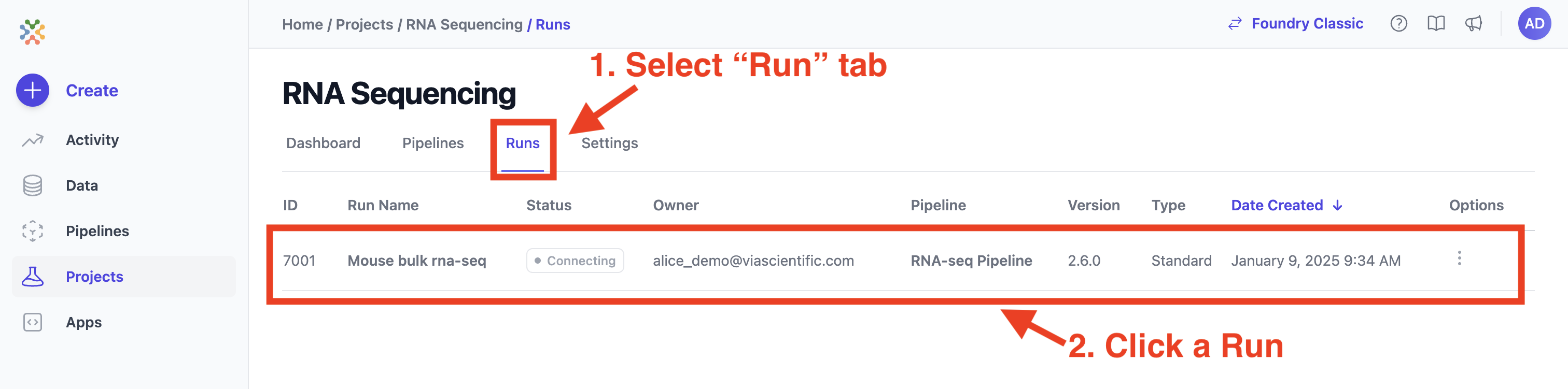
Navigate to your project and choose a run from the "Runs" tab
-
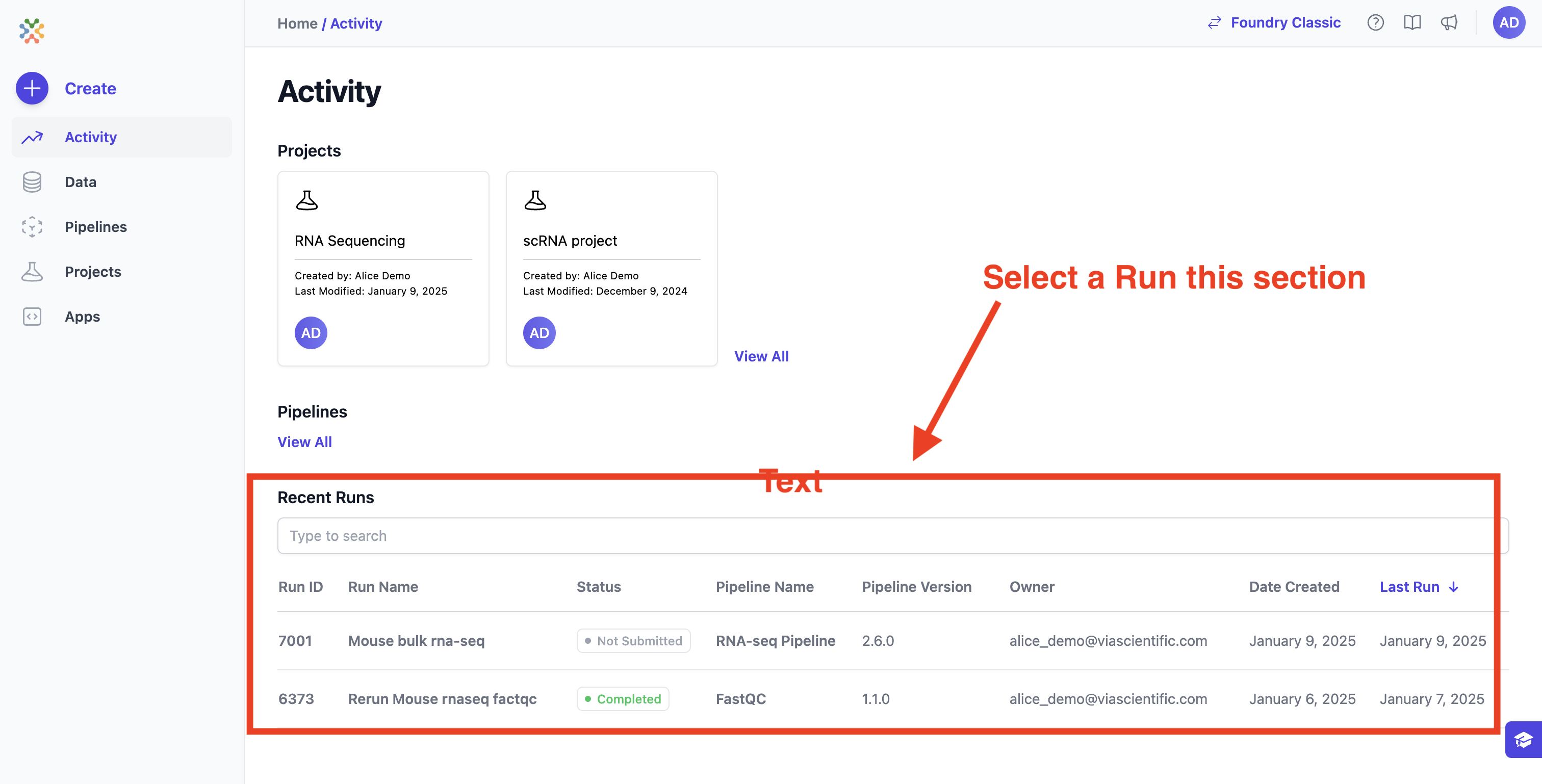
On the Activity page, click a recent run.
Navigating Run page
The header of the run page displays four tabs:

- Run Settings Configure the environment, inputs, and parameters for your pipeline run.
- Advanced Customize resource allocation and executor settings for processes within the run.
- Logs Monitor real-time status, progress, and troubleshooting logs during the run.
- Reports Access detailed outputs, metrics, and visualizations generated by the run.
The icons for Save Run, Run Status and Run options are conveniently located next to the information displayed in the header.
Run Status
The status of your current run is shown on the far right of the run page header. Initially, you will see an orange Waiting button. To initiate a run, ensure that you have entered the following data:
- Run Environment: Select the environment where you would like to conduct your run.
- Launch Directory: Provide the full path to the directory where Foundry will launch the workflow.
- Inputs: Specify the various values and files that define the data to be processed and how it will be processed (e.g., single-end vs. paired-end data). For additional details, see the section on Datasets.
Below is a table outlining the possible status messages you may encounter:
| Status | Meaning |
|---|---|
| Waiting | Waiting for inputs, launch directory, and selection of the active run environment |
| Ready | Ready to initiate the run |
| Connecting | Sending SSH queries to the selected host system |
| Initializing | Job is submitted and waiting for execution |
| Running | Nextflow is executing the jobs |
| Completed | The job has been completed |
| Run Error | An error occurred before submission or during execution of the jobs |
| Terminated | The user terminated the run using the Terminate Run button |
The Unreachable badge
A run's status tells you what the run was doing the last time Foundry Connect managed to ask. If the run environment itself becomes unreachable, that answer stops being refreshed, and a status like Running can sit there looking healthy while nothing is actually known.
To stop a stale status reading as a live one, Foundry Connect marks the attempt when it repeatedly fails to reach the environment. After several consecutive failed checks, an amber Unreachable badge appears beside the run status, and its tooltip gives a plain-language reason, such as a connection timeout.
- It is visible to every project role, viewers included.
- It clears on its own the first time contact with the environment succeeds again.
- It belongs to the attempt it was raised on, so switching to an older attempt that stayed reachable shows no badge.
The badge says Foundry Connect cannot currently talk to the environment. It does not by itself mean the run has failed: work may still be progressing on the cluster while the connection is down. Common causes are the host being down or renamed, a network or VPN interruption, or credentials that stopped working. Check the environment under Configure Run Environment if it does not clear.
When LSF loses contact with a job
Not available in Foundry Connect 2.22.0 or earlier
In 2.22.0 and earlier, a run whose LSF job was reported as UNKWN could be ended while the job
was still running on the cluster.
LSF reports a job as UNKWN when it loses contact with the host running it. The job may still be
working, so Foundry Connect does not treat UNKWN as the end of the run. The run keeps its current
status, such as Running, and Foundry Connect keeps checking it.
If LSF reports the job as UNKWN for 24 hours in a row, the run is marked Run Error. The
Server Logs then include a line saying the scheduler reported the job as
UNKWN for more than 24 hours and that the job may still be running on the cluster. Check the job
on the cluster before you run it again, so the same work does not run twice.
- The 24 hours count from the first
UNKWNanswer. Any answer that places the job, running or finished, starts the count over. - A check that cannot reach the run environment at all neither starts the count over nor ends it.
- An administrator can change the limit with the
SCHEDULER_UNKNOWN_JOB_FAIL_AFTER_MSserver setting, in milliseconds. The default is86400000(24 hours).
Run Settings
The Run Settings section on the Run Page in Foundry Connect 2.0 enables users to customize their runs configuration. This section covers the following functionalities:
- Run Description: Provide a descriptive summary of your run. This helps maintain clarity and context for later reference.
- Run Environment Selection: Choose the desired Run Environment where the process will execute.
Run Environments
Usually, your run environment is already established. If not, refer to Environments Settings for next steps.
Run Inputs
The Inputs section of the Run Page in enables users to configure essential data and parameters for executing a pipeline. Customize this section for the desired analysis or task.