Learning Outcomes
- Learn how to configure Work and Publish directories for run outputs.
- Familiarize with Docker and Singularity image options.
- Configure executor settings for effective runs
- Manage intermediate files created during runs.
Advanced Options
The Advance Run options allow you to customize and fine tune aspects of your analysis.
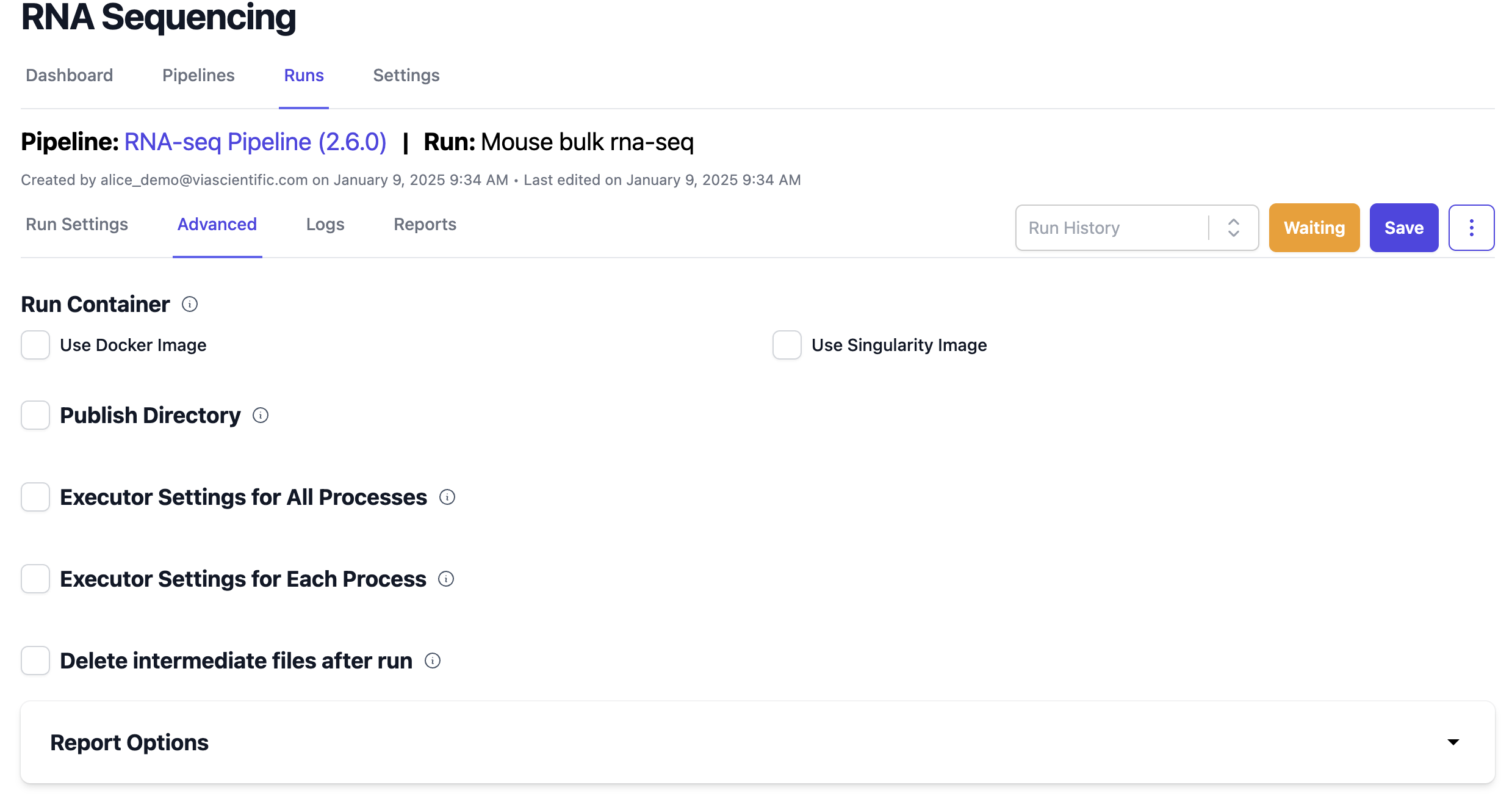
This page breaks down each Advanced Option.
Run Container
During the pipeline creation process, the appropriate containers for each process were specified.
When you select the run environment, the corresponding run container (either Docker or Singularity) checkbox will be automatically selected. You can set a default run container when one isn't specified in a Process.
Using Docker Image
-
Image: Enter the Docker image name (e.g.,
quay.io/ummsbiocore/rnaseq:4.0). -
Run Options (optional): Foundry can autodetect paths and automount necessary files to the container before the run starts. You can also enter any command line arguments supported by the Docker run command. For more details, refer to the Docker CLI documentation.
Using Singularity Image
To activate a Singularity image, check the Use Singularity Image checkbox and provide the relevant details:
-
Image: Enter the path to the desired Singularity image, e.g.:
docker://quay.io/ummsbiocore/rnaseq:4.0shub://UMMS-biocore/singularitysc/project/umw_biocore/singularity/UMMS-Biocore-singularity-master.simg
-
Run Options (optional): Similar to Docker, Foundry automatically detects paths and mounts files to the container.
You can specify command line options supported by the Singularity exec command, e.g.
--bind- which allows you to mount directories.```bash --bind /project:/project --bind /nl:/nl ```For more information about Singularity command line arguments, refer to the Singularity documentation. Example:
Work and Publish Directory
This section controls where Foundry Connect writes your run outputs:
- Work Directory: the Nextflow work directory (passed to Nextflow via
-w). - Publish Directory: where the run’s report outputs are published.
You can choose between Default and Custom directory modes.
Default mode
Enter a base directory. Foundry will automatically append run-specific suffixes:
- Work Directory: Foundry appends
/run{runId}/work - Publish Directory: Foundry appends
/report{runId}
You can use the Resolved paths disclosure to view the full resolved paths that will be used for the run.
Custom mode
Custom mode lets you override the base directory for Work Directory, Publish Directory, or both:
- If a custom checkbox is unchecked, Foundry uses the default base directory.
- If a custom checkbox is checked, you can enter a custom base directory for that item.
Foundry still appends the same suffixes in custom mode:
- Work Directory:
/run{runId}/work - Publish Directory:
/report{runId}
Acceptable base directories include:
- Local paths (e.g.,
/home/user/test) - Amazon S3 paths (e.g.,
s3://yourbucket/test) - Google Storage paths (e.g.,
gs://yourbucket/test)
Executor Settings
By default, Runs use executor settings established in your Run Environment. You can establish overrides at the Pipeline level or at the Process level.
Recommended defaults
For shorter (~240 minutes of execution time) low resource jobs we recommend
- Short: 20GB memory
- 1 CPU
- 240 minutes of execution time
For longer (~1000-5000 minutes) more resource intensive jobs
- Long: 20GB memory
- 4 CPUs
Global Pipeline Executor Settings
In the Advanced tab of the run page, this setting overrides parameters specified in the Run Environment, applying the settings to all processes in your run. Suggested configuration:
Process Executor Settings
In the Advanced tab of the run page, you can override default parameters for specific processes. Click on the checkbox corresponding to the process you want to change. Suggested parameters are:
Delete Intermediate Files After Run
By default, Foundry Connect deletes intermediate files created during a run, retaining only the essential files in the report folder. This setting minimizes storage requirements for your project, but you can uncheck the box to keep all intermediate files if needed.