Learning Outcomes
- Understand what Personal Access Tokens (PATs) are and when to use them.
- Choose the right token type (General vs MCP).
- Generate and securely store a token.
- Use a token with the SDK or scripts.
Personal Access Tokens (PATs)
Personal Access Tokens (PATs) provide secure, programmatic access to Foundry Connect APIs without using your password.
Personal Access Tokens Overview
PATs are long, random strings used to authenticate requests to Foundry Connect.
Common scenarios
- Running pipelines from CI/CD
- Downloading report files programmatically
- Powering an AI assistant integration using MCP
Treat tokens like passwords
- Do not commit tokens to Git
- Do not paste tokens into screenshots or tickets
- Prefer environment variables or a secrets manager
Token Types
Foundry Connect supports two types of Personal Access Tokens:
General Purpose Tokens
| Attribute | Description |
|---|---|
| Prefix | None |
| Use Case | API access, CLI, Python SDK, R SDK |
| Format | <128-character-random-string> |
Best for
- Python scripts using the Foundry Connect SDK
- Command-line automation
- CI/CD pipelines
- Custom integrations
MCP Tokens
| Attribute | Description |
|---|---|
| Prefix | via_mcp_ |
| Use Case | AI assistant integration |
| Format | via_mcp_<128-character-random-string> |
Best for
- Cursor IDE integration
- VS Code (Continue extension)
- Claude Code
- Claude Desktop
- Any MCP-compatible AI tool
MCP prefix is required
MCP tokens must start with via_mcp_. The MCP server validates this prefix and rejects tokens
without it — on every authentication path. The check applies whether you send the token as an
X-Foundry-Connect-Token header or as Authorization: Bearer <token>, so a General Purpose token
will not work for MCP even as a bearer token. Select the MCP usage type when creating it.
Setting up MCP?
After creating an MCP token, see MCP Integration for client configuration.
Tokens created for you by "Connect to Claude"
If you connect through the OAuth flow (Profile → Connect to Claude) rather than creating a token by hand, Foundry Connect still issues a real MCP token on your behalf — you just never see it. It behaves exactly like one you made yourself:
| Attribute | Value |
|---|---|
| Name | Claude connection |
| Type | MCP |
| Prefix | via_mcp_ (same as any MCP token) |
| Expires | 90 days after you authorize |
Two practical consequences:
- This list is where you revoke Claude's access. Deleting the
Claude connectiontoken immediately disconnects that Claude client — there's no separate "disconnect" screen. - The connection expires. After 90 days Claude's calls start failing with an authentication error. Reconnect from Profile → Connect to Claude to issue a fresh token; you don't need to reinstall anything.
If you authorize more than once, you'll see more than one Claude connection entry — each authorization
mints its own token. Deleting the others is safe, provided you keep the one currently in use.
How to Generate Tokens
Step 1: Navigate to Personal Access Tokens
- Log in to Foundry Connect
- Click your profile icon in the top navigation bar
- Select Personal Access Tokens
Step 2: Create a new token
- Click Create New Token
- Enter a descriptive Token Name (e.g.,
Automation Token,Cursor MCP Token, orClaude Code MCP) - Set Expiration Date (default: 30 days, max: 1 year)
Step 3: Select token usage
| Option | When to Use |
|---|---|
| General Purpose | Python SDK, CLI, API scripts |
| MCP (Model Context Protocol) | AI assistants (Cursor, VS Code, Claude Code, Claude Desktop) |
Selecting MCP generates a token with the required via_mcp_ prefix for use with AI assistants.
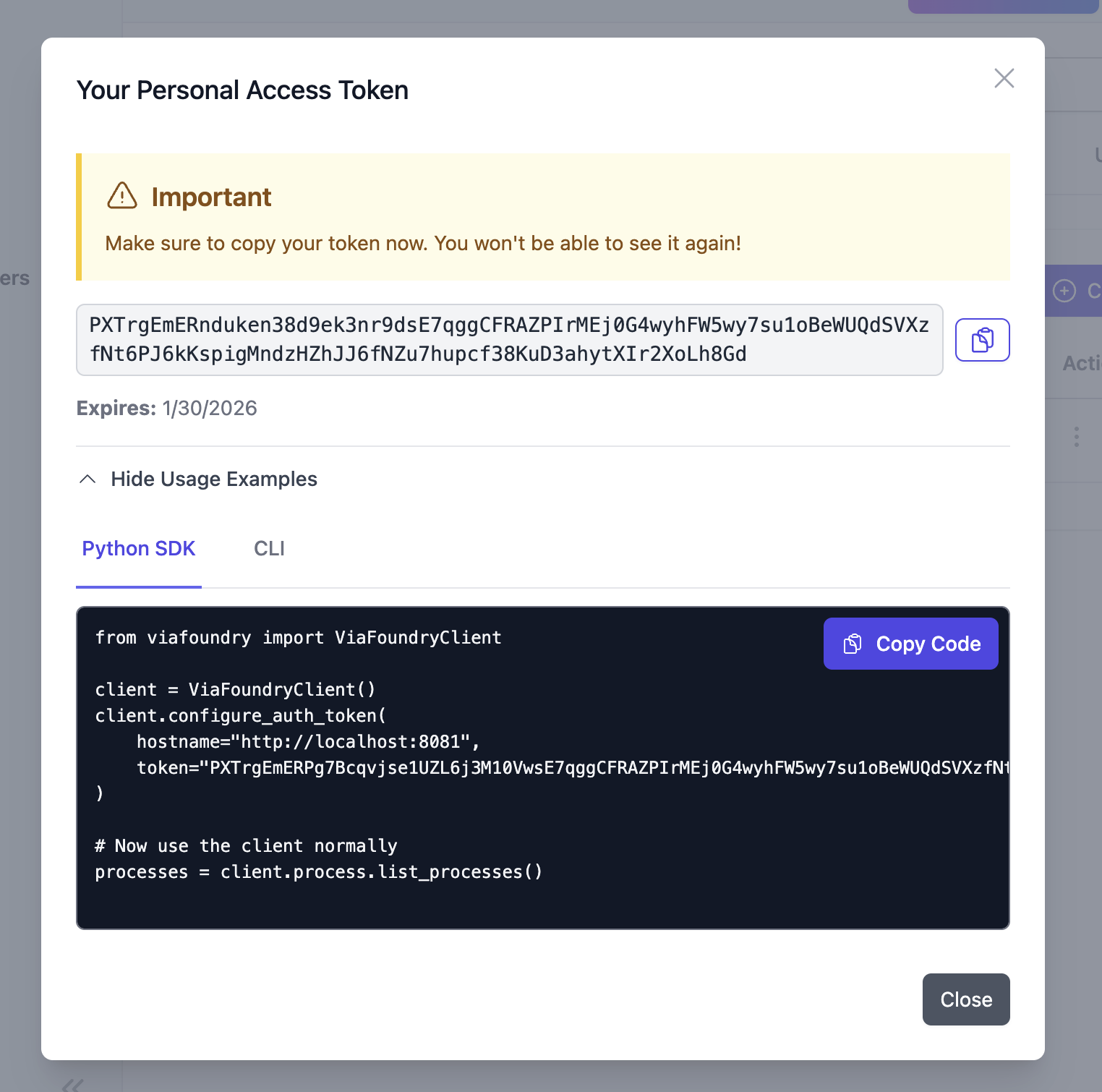
Step 4: Copy and save your token
After creation, your token will be displayed only once — copy it immediately and store it securely.
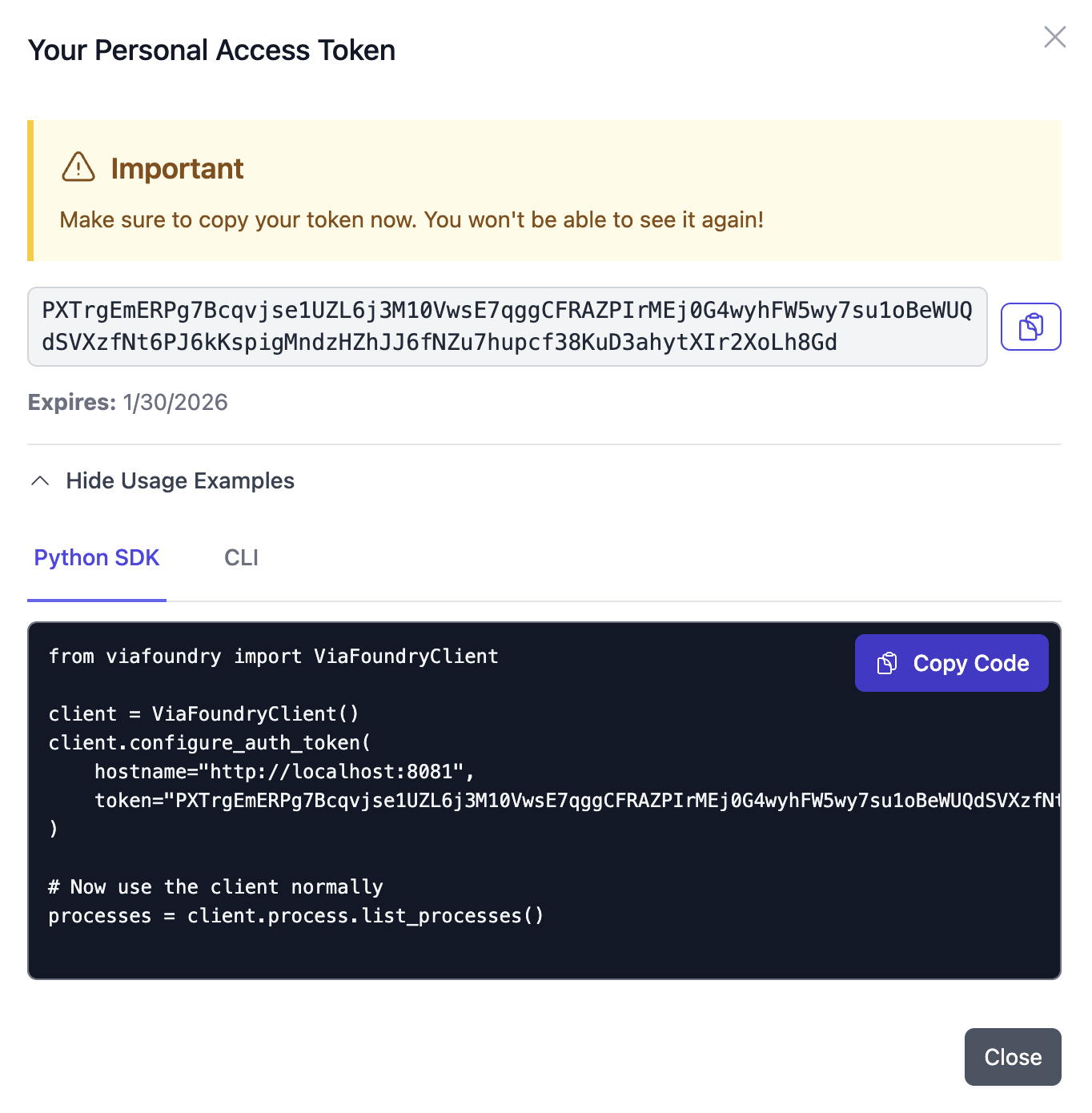
Copy immediately
The token cannot be viewed again after closing the dialog. Store it securely (password manager, secrets manager, or an encrypted vault).
Ready-to-use MCP configuration
After creating an MCP token, Foundry Connect provides a ready-to-use configuration snippet under Usage Examples. Select the MCP tab and choose your client (Cursor or VS Code) from the dropdown to get a config block you can copy directly into your editor. For Claude Code and Claude Desktop, see the MCP Integration guide.
Using Tokens (SDK / Scripts)
Python SDK
from viafoundry import ViaFoundryClient

client = ViaFoundryClient()
client.configure_auth_token(
    hostname="https://your-viafoundry.com",
    token="your-token-here"
)
Use environment variables
Prefer loading tokens from env vars (e.g., VIAFOUNDRY_TOKEN) rather than hardcoding them in scripts.