Learning Outcomes
- Understand that claude.ai and Claude for Science connect via a custom MCP connector, not the plugin marketplace.
- Add Foundry Connect as a custom connector.
- Use a manual PAT as an alternative to OAuth.
claude.ai / Claude for Science
Plugin vs. connector — which one applies here?
Foundry Connect plugs into Claude two ways. The foundry-connect plugin (the foundry-pipelines skill plus /foundry-* slash commands) runs only inside Claude Code — the CLI and the VS Code extension; set that up on the Claude Code page. claude.ai and Claude for Science are the web app, which can't run Claude Code plugins, so here you connect Foundry Connect's MCP server directly as a custom connector over OAuth. Same Foundry Connect tools underneath — you don't need (or can't use) the plugin on this surface.
If you haven't connected Claude to Foundry Connect before, do the one-time setup in Getting Started first — this page has the claude.ai / Claude for Science-specific steps.
Add Foundry Connect as a custom connector
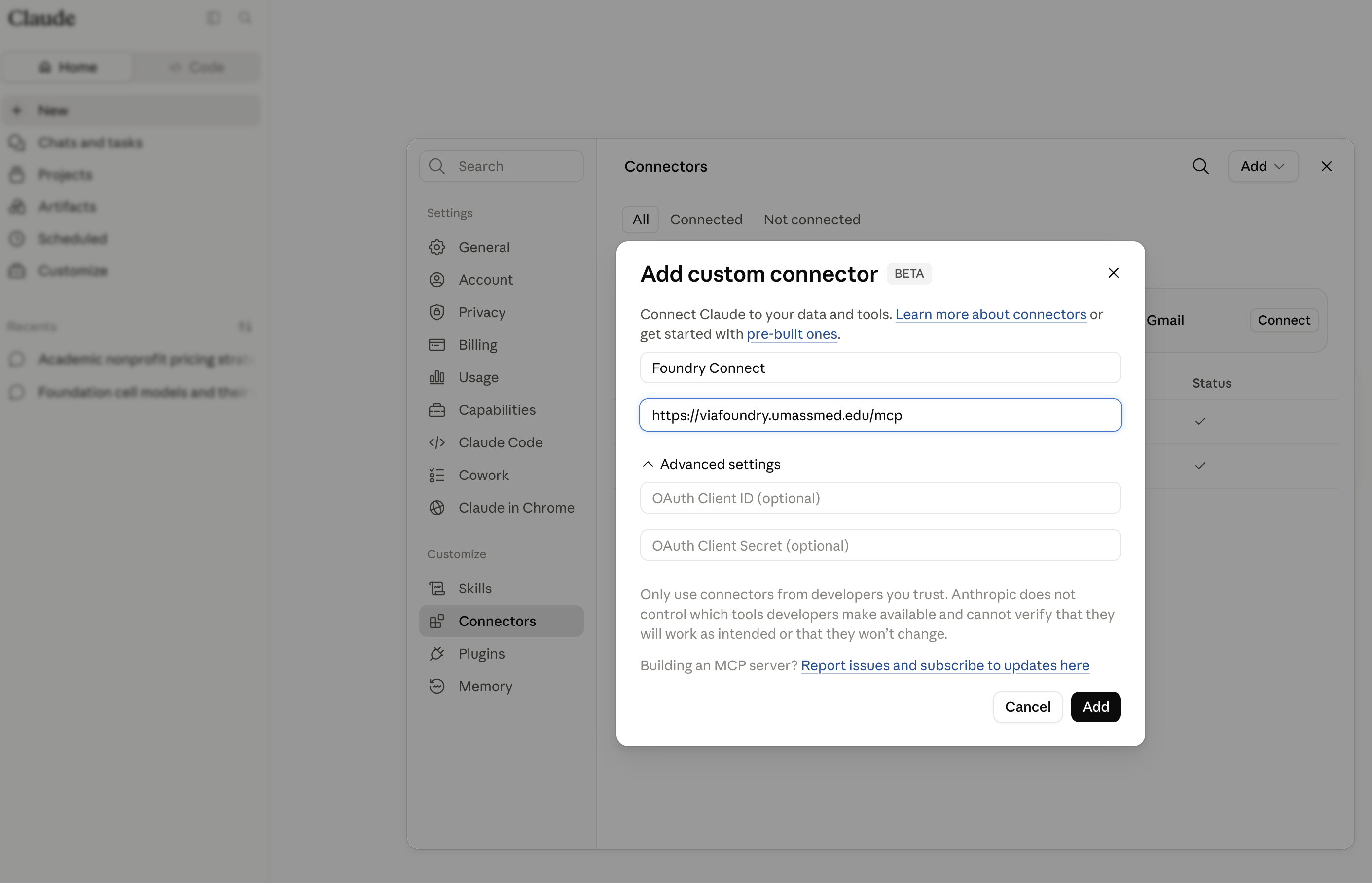
- In claude.ai (or Claude for Science), go to Settings → Connectors.
- Choose Add custom connector.
- Enter your Foundry Connect MCP URL:
https://<your-instance>/mcp - Click Connect.
Seamless OAuth (preferred)
Step 4 redirects you to Foundry Connect to sign in and approve access — the same "Connect to Claude" authorization described in Getting Started. Once approved, claude.ai stores the token for you; there's nothing to copy or paste.
Manual PAT (fallback)
If your connector setup doesn't complete the OAuth sign-in, connect with a manual token instead:
- Generate an MCP token (starts with
via_mcp_) under Personal Access Tokens. - Use the token wherever your connector setup accepts an auth header or token — Foundry Connect's MCP server accepts it as a bearer token. If that field isn't exposed for this connector, check with your workspace admin.
Example prompts
Once the connector shows as connected, ask Foundry Connect questions directly in claude.ai or Claude for Science:
- "Show my last 5 runs on Foundry Connect."
- "List the pipelines available to me."
- "Fetch the report for run <id> and summarize the QC results."
You do not need to know which pipeline you want, or name any tool. Describe the experiment and Claude will work it out:
- "I have mouse RNA-seq, treated vs control, and I want the differentially expressed genes."
- "I want to look at chromatin accessibility in my samples."
- "Where does my transcription factor bind?"
- "Is run <id> done yet? How far along is it?"
- "Why did run <id> fail?"
- "What did run <id> find?"
A worked example: from a goal to a launched run
This is the path Claude follows for a request like "I have mouse RNA-seq, treated vs control, and I want the differentially expressed genes." You only describe the goal — the steps below are what happens underneath.
1. Find the right pipeline. Claude matches your goal against the curated catalog and explains its reasoning, rather than making you browse. It also finds a past run that worked, to copy settings from.
RNA-seq Pipeline — name matches rna seq; description mentions expression — with run 12194 as a working example to clone.
It understands what an assay measures, not just keywords: "chromatin accessibility" finds ATAC-seq even though the pipeline description never uses that phrase. If nothing genuinely fits, it says so instead of guessing.
2. Answer only the questions that matter. The RNA-seq pipeline has 70 inputs and 61 process-option groups. Almost all are reference genomes and index paths your admin set up once. Claude hides those and asks only the handful that are really decisions:
- Which samples to analyse
- Sample groups — which sample belongs to which condition
- Which comparisons to make (e.g. treated vs control)
- Which genome build to align against
- Are the reads single-end or paired-end?
- Which analysis steps to run
- Which gene annotation source to use
- Add sequences to reference
3. Get your data in. Give Claude the paths to your fastq files and it builds the sample dataset in one step, pairing R1/R2 automatically. It tells you if a read looks like it is missing its mate, rather than quietly treating it as single-end.
4. Describe the experiment. Say which samples are controls and which are treated, and which comparisons you want. Claude writes the sample sheets and puts them where the run expects them. It will refuse a group with only one sample, because differential expression cannot test a group without replicates.
5. Check before you spend cluster time. Ask Claude to check the run before launching. It verifies your samples are attached, that every file it will read actually exists, that the sample names in your sheet match your dataset, and that each group has replicates.
Run 12186: BLOCKED — no sample dataset is attached;
groups_filepoints at a path that does not exist.
This is the step worth insisting on. Without it, a broken configuration is only discovered after the job has queued and run — often as a step that silently reports "Skipped" rather than failing outright.
6. Launch. Claude always asks you to confirm before starting a run, because launching uses HPC compute.
7. Check on it. Ask "is it done yet?" or "how far along is it?" and Claude reports the actual progress — how many steps have finished, which step is running now, and which failed — rather than a single status word:
Running, 118 of 133 steps done (89%). Currently running DE_module_RSEM.
Claude cannot watch the run for you between messages, so while it is still going it will tell you to check back rather than pretend to monitor. If a step fails, it names the step and points you at the error.
8. Read the results. When the run finishes, ask what it found. Claude leads with the findings rather than a list of files — how many genes came out differentially expressed, the strongest changes in each direction, and an alignment verdict:
5 significant genes in control_vs_exper, led by AK208554 (log2FC +2.42). 6 samples, 93.2% aligned.
An RNA-seq run quantifies your data five different ways (RSEM, Kallisto, Salmon, and two STAR variants), so Claude also tells you where those methods agree — genes found by all five are the ones to trust most.
Ask for the files themselves and you get them grouped by what they are, with the intermediates hidden. Ask to look at the results and Claude tells you which viewer opens them — differential expression in GSEA Explorer, single-cell objects in Cellxgene, alignments in IGV — and only suggests apps your instance actually has.
You can start anywhere
Already know the pipeline? Skip to step 2. Just want to know why something failed? Ask "why did run <id> fail?" and Claude fetches the log that actually carries the error.
See also
- Getting Started
- MCP Integration — client config reference and the full tool list.
- Personal Access Tokens (PATs)