Learning Outcomes
- Know what you need before connecting Claude to Foundry Connect.
- Connect once, using either seamless OAuth or a manual PAT.
- Ask Claude your first question about your Foundry Connect data.
- Know where to go next for your specific Claude surface.
Getting Started
This page gets you from zero to a working Claude ↔ Foundry Connect connection, regardless of which Claude surface you end up using day to day. Do this once, then jump to the page for your surface: Claude Code, Claude Code in VS Code, or claude.ai / Claude for Science.
What you need
- A Foundry Connect account on the instance you want Claude to talk to.
- Your instance URL (for example
https://<your-instance>) — ask your Foundry Connect administrator if you're not sure which one.
That's it. No local installs are required for the connector path; the plugin path (Claude Code / VS Code) additionally needs a Claude Code session, covered on its own page.
Connect once
Seamless OAuth: "Connect to Claude" (preferred)
- Log in to Foundry Connect.
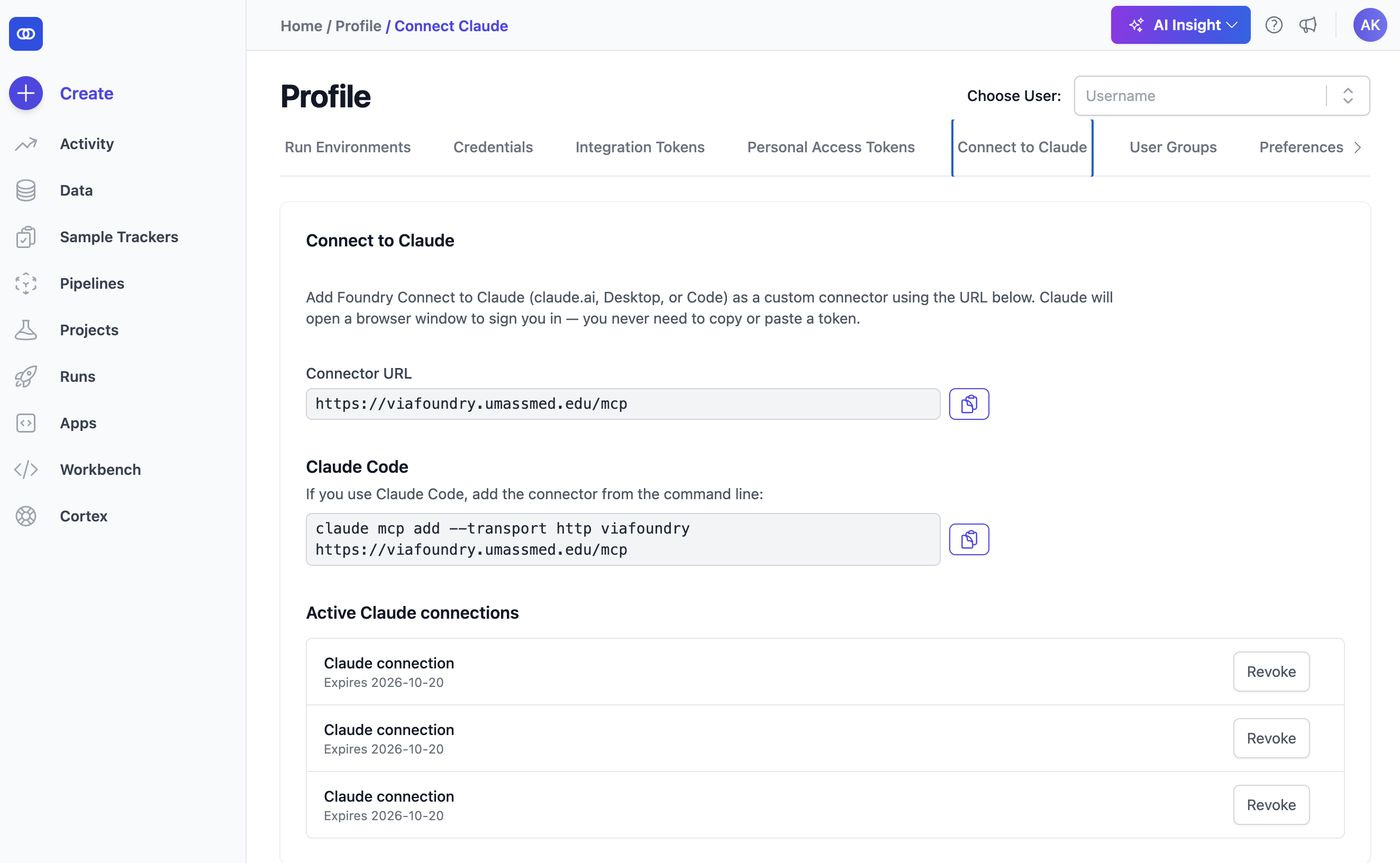
- Open your Profile and select Connect to Claude.
- Follow the prompt to authorize access. Foundry Connect provisions an MCP token for you automatically — you never see or copy a token by hand.
What authorizing actually creates
The token provisioned for you is an ordinary MCP token (prefix via_mcp_), named
Claude connection, valid for 90 days. It appears in your
Personal Access Tokens list — which is where you go to
revoke Claude's access (delete that entry) or to reconnect once it expires. There is no separate
disconnect screen.
Manual PAT (alternative)
- Under Personal Access Tokens, generate an MCP token — it will start with
via_mcp_. - Supply it to your client of choice as the
X-Foundry-Connect-Tokenheader (or, where a client only supports a bearer token field, as anAuthorization: Bearer via_mcp_...value). Exact steps depend on your surface — see Claude Code, Claude Code in VS Code, claude.ai / Claude for Science, or MCP Integration for Claude Desktop and other clients.
Your first conversational action
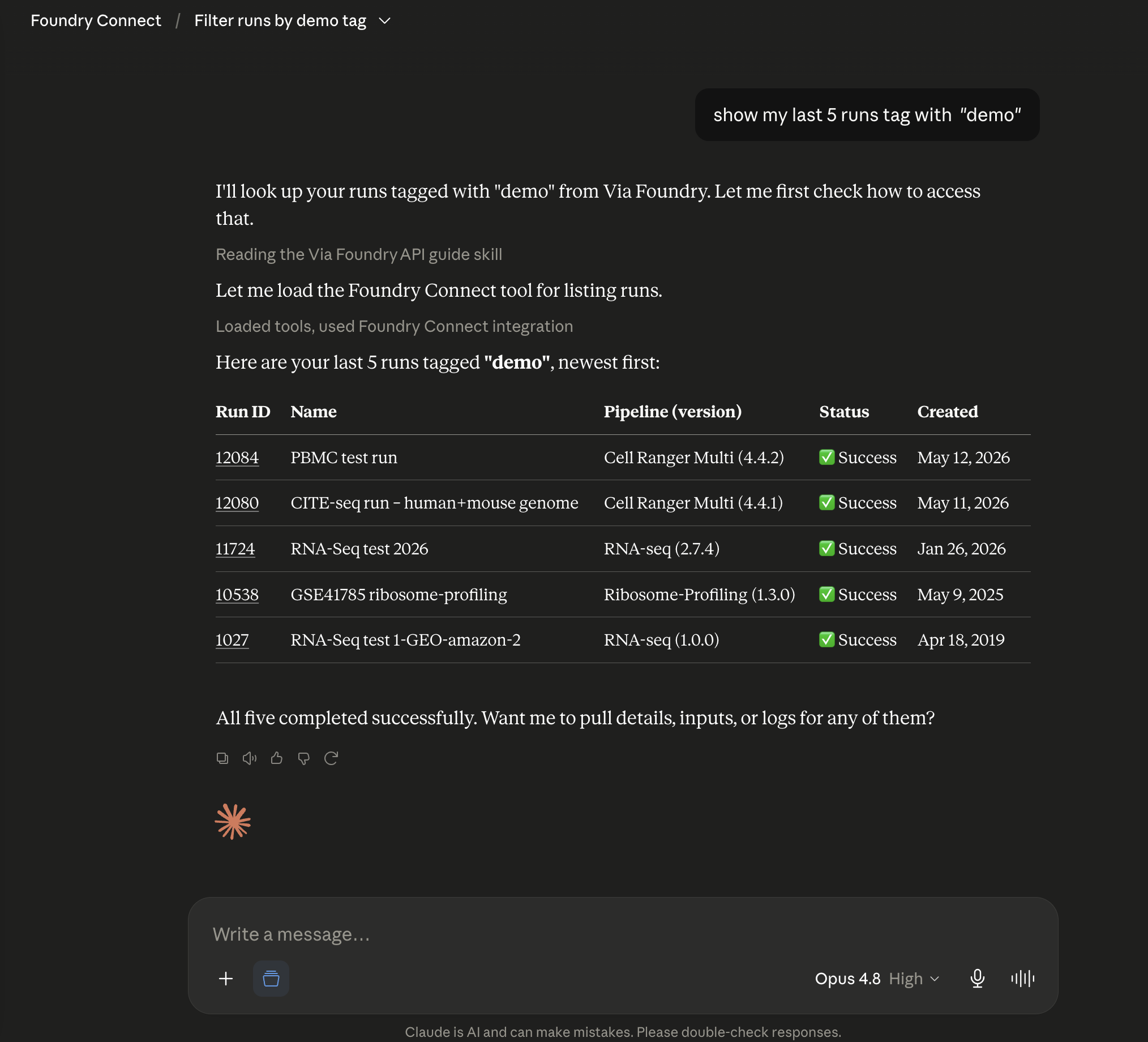
Once connected, try asking Claude something simple and read-only, for example:
Show my last 5 runs on Foundry Connect.
Claude calls the Foundry Connect MCP server behind the scenes and replies with a summary of your recent runs — no dashboards, no clicking around.
From there, try:
- "What pipelines do I have access to?"
- "What's the status of my most recent run?"
- "Fetch the report for run <id>."
Where to go next
| If you're using... | Go to |
|---|---|
| Claude Code (terminal) | Claude Code |
| Claude Code extension in VS Code | Claude Code in VS Code |
| claude.ai or Claude for Science | claude.ai / Claude for Science |
| Claude Desktop, Cursor, or another MCP client | MCP Integration |