Learning Outcomes
- Install the
foundry-connectplugin in a Claude Code session. - Verify the connection with
/mcp, and diagnose it when the server doesn't appear. - Wire up Foundry Connect as an MCP server without the plugin, if you prefer.
- Use natural-language prompts and the bundled slash commands.
Claude Code
New to Claude and Foundry Connect? Do the one-time connection in Getting Started first — this page covers Claude Code specifically. Claude Code (the CLI) and its VS Code extension use the plugin path: a marketplace install that adds a preconfigured MCP connection plus Foundry Connect slash commands.
Install the plugin (preferred)
Step 1 — start a Claude Code session
In your terminal, cd to any project directory and start Claude Code:
claude
You'll get Claude's prompt (a > input). The commands below are typed at that prompt, not in your shell. They start with / because they're Claude Code slash commands — running them in bash gives you command not found.
Step 2 — add the marketplace and install
Type each of these at the Claude prompt, pressing Enter after each:
/plugin marketplace add UMMS-Biocore/foundry-connect-plugin
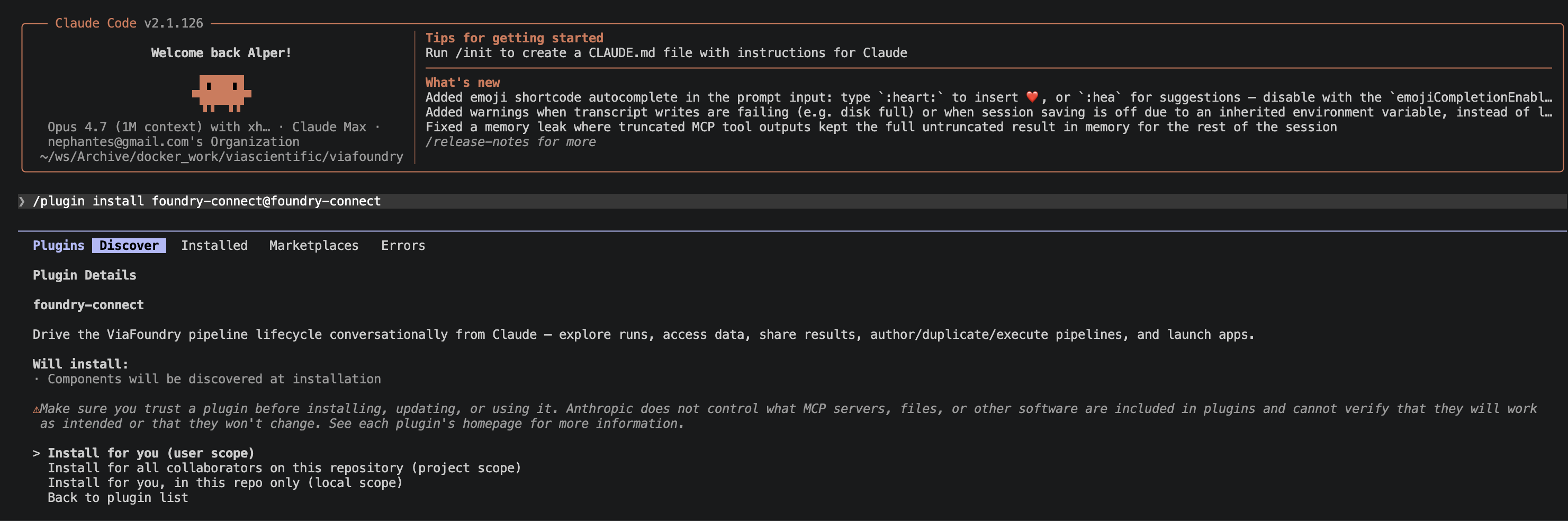
/plugin install foundry-connect@foundry-connect
Step 3 — enter your instance URL
The install prompts you for your instance URL. Enter the base URL only:
https://<your-instance>
Enter the base URL — not the connector URL ending in /mcp
The plugin appends /mcp itself. If you paste the full connector URL shown on the
Profile → Connect to Claude page (which already ends in /mcp), the plugin builds
https://<your-instance>/mcp/mcp and the connection silently fails.
✅ https://<your-instance>
❌ https://<your-instance>/mcp
❌ https://<your-instance>/ (no trailing slash)
Step 4 — restart Claude Code
This step is required, and skipping it is the most common reason the install "doesn't work".
Claude Code loads plugin-provided MCP servers when a session starts. A plugin you installed
mid-session is on disk, but its MCP server isn't live yet — so the plugin shows as installed while
Foundry Connect is missing from your server list. Exit the session (/exit or Ctrl-D) and run
claude again.
Step 5 — verify the connection
At the Claude prompt, run:
/mcp
You should see a server named foundry, connected. That name is also a useful diagnostic:
What /mcp shows |
What it means |
|---|---|
foundry |
Connected through the plugin. This is what you want. |
viafoundry |
You're on an older manual claude mcp add connection, not the plugin. Both work, but see the migration note below. |
| Nothing / no Foundry server | The plugin's server didn't load — work through Troubleshooting. |
Already connected as viafoundry?
Earlier instructions named the server viafoundry. The name is just a local alias in your own
Claude config, so an existing connection keeps working. But if you install the plugin without
removing the old entry, you'll have two servers exposing the same tools, and Claude may pick
either one. Remove the old one from your shell:
claude mcp remove viafoundry
How authorization happens
- Seamless OAuth: the plugin opens the "Connect to Claude" authorization flow described in Getting Started — approve it once and you're connected. No token to copy.
- Manual PAT fallback: the plugin's bundled MCP connection is OAuth-only — it has no token prompt. To connect with a manual token instead, skip the plugin's connection and use the MCP-only alternative below with a PAT (
via_mcp_...) generated under Personal Access Tokens.
Troubleshooting the plugin install
| Symptom | Cause | Fix |
|---|---|---|
Plugin installs, but no Foundry server in /mcp |
Session hasn't restarted since the install | Exit and rerun claude (Step 4) |
| Still nothing after restarting | Instance URL has /mcp or a trailing slash |
Reinstall and enter the bare base URL (Step 3) |
claude mcp list shows a literal ${instance_url} |
Your Claude Code version didn't capture the URL prompt | Update Claude Code, or use the MCP-only alternative |
command not found: /plugin |
Commands typed in the shell instead of at Claude's prompt | Run claude first, then type them (Step 1) |
| Two Foundry servers, duplicate tools | An old viafoundry entry alongside the plugin |
claude mcp remove viafoundry |
| Connected, but tools fail with an auth error | Authorization never completed or was revoked | Reconnect from Profile → Connect to Claude |
If the plugin still won't connect, the MCP-only alternative below always works — you keep all the tools and lose only the slash commands.
MCP-only alternative (no plugin, no slash commands)
If you just want Foundry Connect's tools available in Claude Code without the plugin's slash commands, add it as a plain MCP server:
claude mcp add --transport http foundry https://<your-instance>/mcp
For a non-OAuth instance, add your PAT as a header:
claude mcp add --transport http foundry \
  --header "X-Foundry-Connect-Token: via_mcp_your-token-here" \
  https://<your-instance>/mcp
For project vs. global scope (--scope project|user), .mcp.json file layout, and troubleshooting, see MCP Integration → Claude Code — this page doesn't repeat that reference material.
Example prompts
Once connected (plugin or MCP-only), talk to Foundry Connect in plain language:
- "Show my last 5 runs."
- "What's the status of run <id>?"
- "List the pipelines I have access to."
- "Fetch the report for my most recent RNA-seq run."
Slash commands (plugin only)
Installing the plugin also adds Foundry Connect-specific slash commands:
| Command | What it does |
|---|---|
/foundry-run |
Kick off (or duplicate and launch) a pipeline run. |
/foundry-status |
Check the status of a run. |
/foundry-results |
Browse or fetch a run's results. |